> For the complete documentation index, see [llms.txt](https://docs.enable3.io/enable3/llms.txt). Markdown versions of documentation pages are available by appending `.md` to page URLs; this page is available as [Markdown](https://docs.enable3.io/enable3/getting-started/basic-setup/localization.md).
# Localization
Speak to the users in their language. Serve international audiences while maintaining a consistent user experience.
As an Administrator, you can configure which languages are supported in your Loyalty Widget, Landing Page, or Telegram Mini App.
Once you configure it, the Loyalty interface will display the user's preferred language when available. If the user’s language is not supported, the system will fall back to the default language – also defined by you.
{% hint style="success" %}
**18** languages are already available.
We are currently working on adding more languages. Please let us know if your preferred language is not on the list.
{% endhint %}
See the full list of available languages
* Bahasa Indonesian
* Czech
* English
* French
* German
* Hindi
* Hungarian
* Japanese
* Latvian
* Lithuanian
* Polish
* Portuguese
* Romanian
* Russian
* Slovenian
* Spanish
* Turkish
* Ukrainian
### 🎯Why Use Localization
* Support for multiple interface languages → Enables businesses to run loyalty programs across multiple regions without creating separate program versions → **Reduced operational overhead when expanding to new markets.**
* Consistent language handling across all Views (Widget, Landing Page, Telegram Mini App) → Creates a coherent user experience → **Improved clarity and user satisfaction.**
* Ability to define a default language → The Loyalty interface is always displayed correctly, even when a user’s language is not supported → **Reduced usage friction and improved user satisfaction.**
* Automatic language detection based on the user’s device or app settings → Users see the loyalty experience in a familiar language without manual switching → **Reduced usage friction and improved engagement.**
#### Use Case #1: You want to expand a loyalty program to multiple countries
**Problem**: As a SaaS business, you’re launching a loyalty program. You have users in Western Europe, North America, and Latin America, and you want all of them to be able to participate in this program.
**Solution**: Add English, Spanish, Portuguese, French, and German to the supported language list. Set English as the default language.
**How it works**: Users automatically see the loyalty widget in their preferred language based on their device settings. If their preferred language is not included in the supported language list (for example, Dutch), there’s still a high chance they will be able to pick another language they know.
**Outcome**: Users understand missions, rewards, and instructions more easily, increasing participation and program adoption across markets.
### How Localization Works
When a user opens the Loyalty Widget, the Telegram Mini App, or visits the Loyalty Landing Page, Enable3 checks the user’s device system’s language settings.
If their system’s language is supported in the localization configuration, the Loyalty interface will be displayed in that language.
{% hint style="success" %}
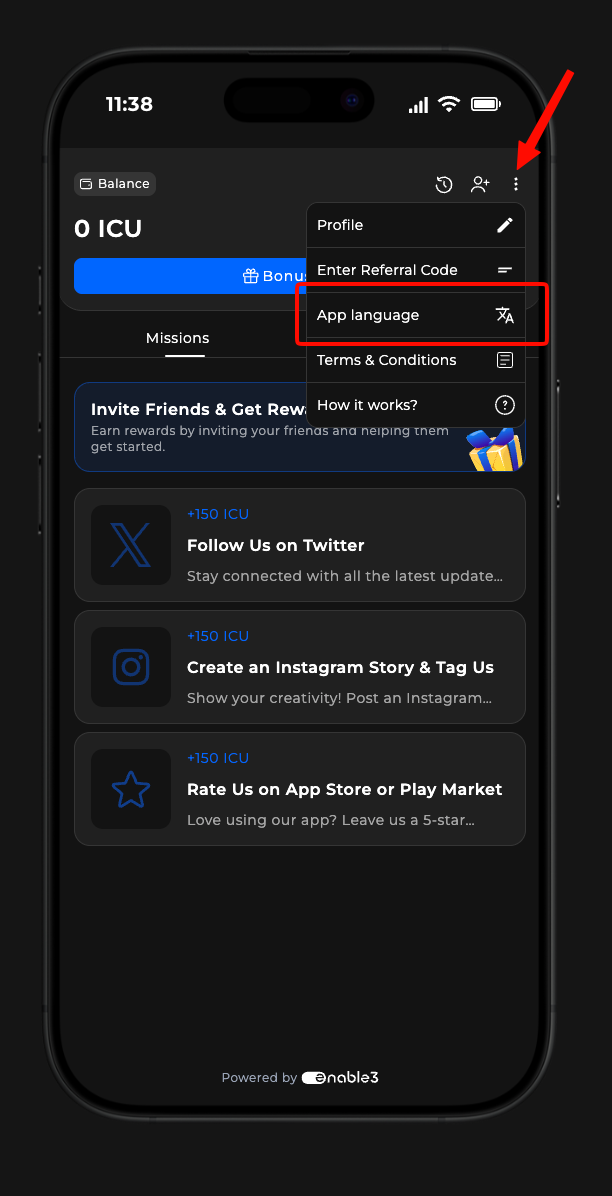
Users can change the interface language themselves in the Widget, App, or Page Settings.
{% endhint %}
Changing the language settings in the Loyalty Widget
Changing the language settings in the Telegram Mini App
If the user’s system language is not supported, the interface will be displayed in the default language you selected.
{% hint style="danger" %}
Please note that the Loyalty interface will be displayed in the user system’s language only if you’ve added it to the Supported Languages list during the Localization setup.
{% endhint %}
### How to Set Up Localization
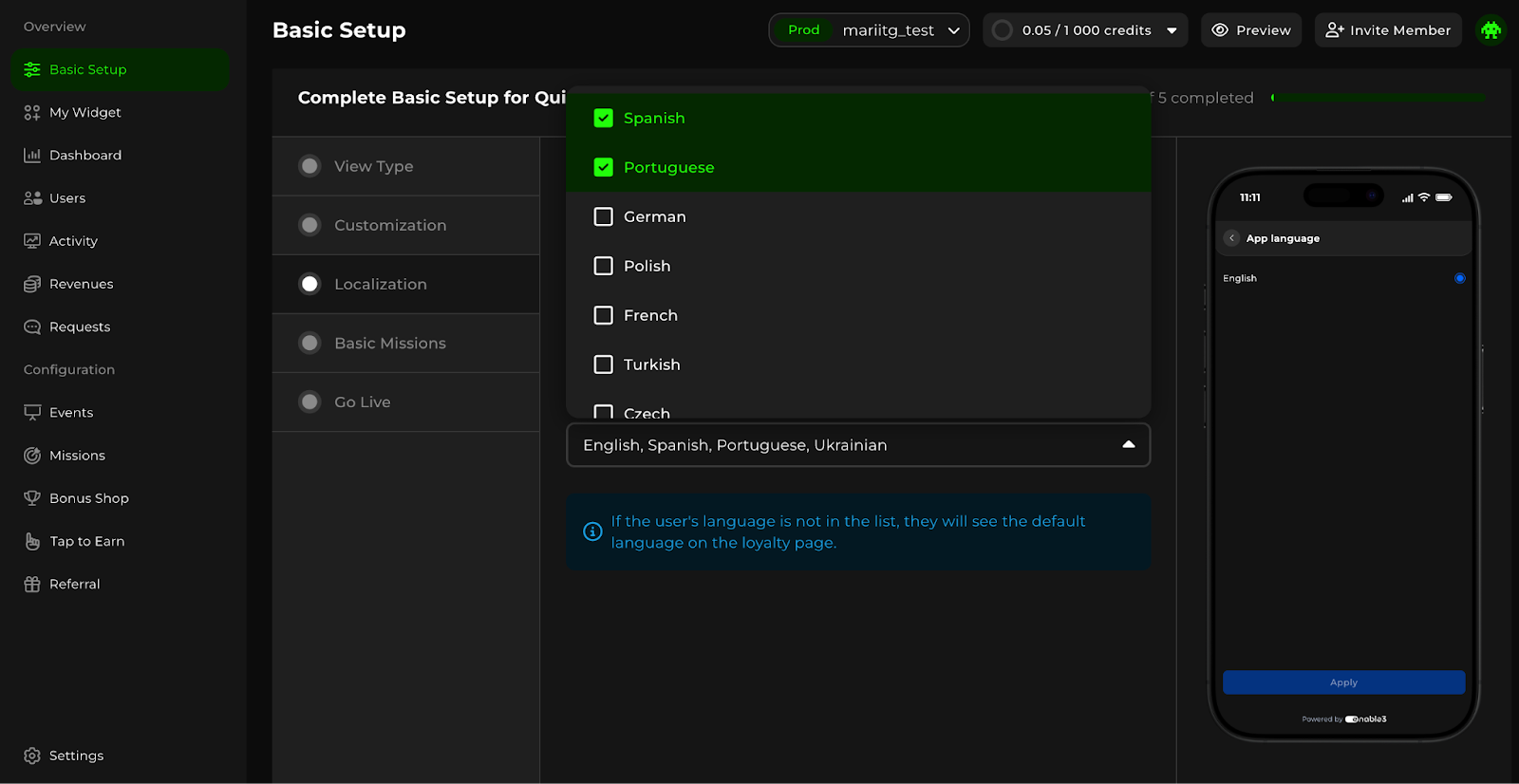
Go to the Basic Setup page, Localization section.
Under the List of Languages section, check boxes for all languages you want your loyalty program to support.
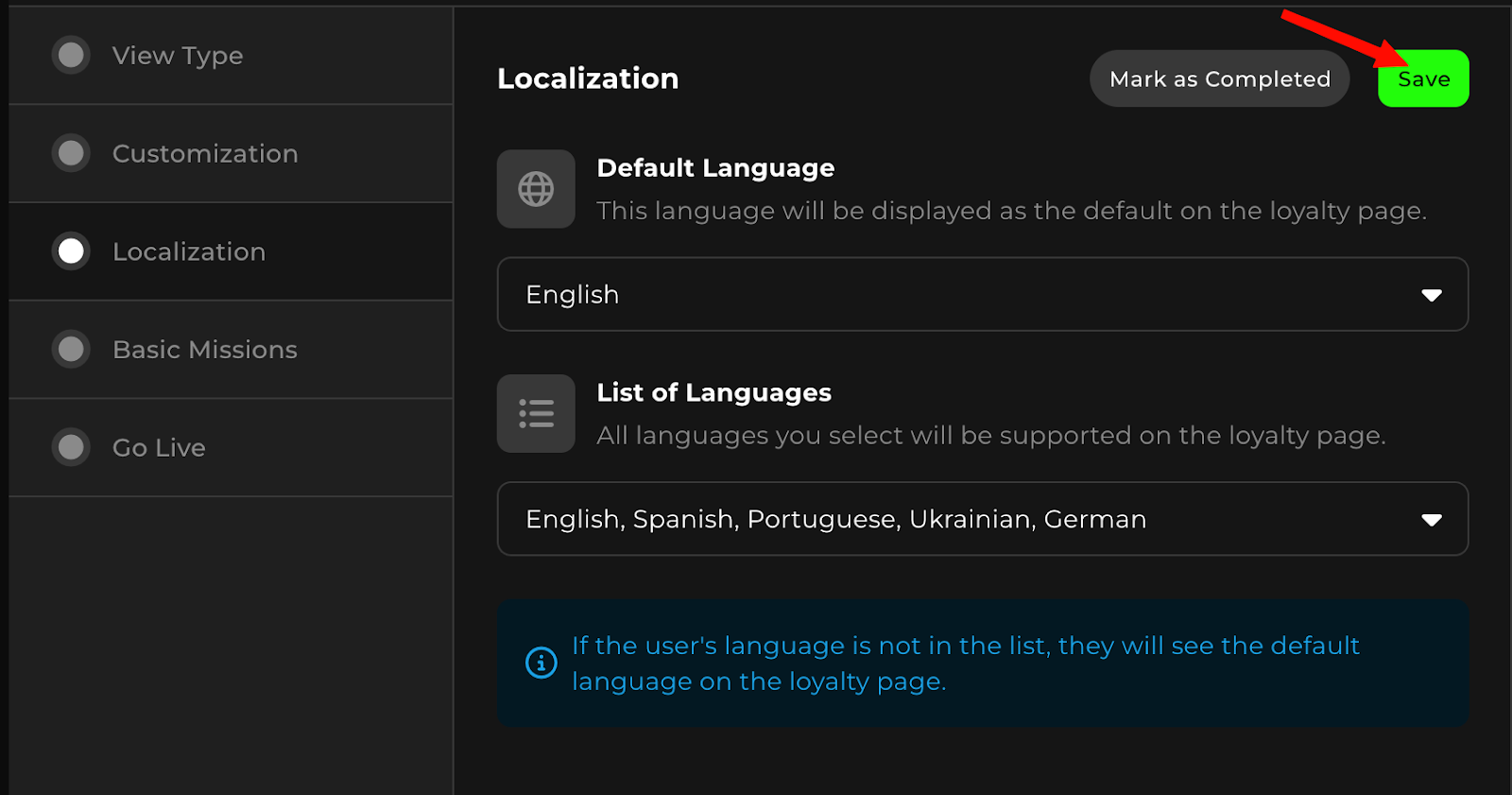
Click Save.
Under the Default Language section, choose the primary language used in the Loyalty interface. Note that it’s set to English by default.
{% hint style="info" %}
This language will be displayed when:
* The user's language cannot be detected
* The user’s language is not included in the supported languages list
{% endhint %}
Only one default language can be selected.
Save the configuration by clicking Save.
{% hint style="info" %}
The actions above configure the language of the entire Loyalty interface. The descriptions of Missions, Quests, Rewards, and other elements of the platforms will be translated automatically.
{% endhint %}
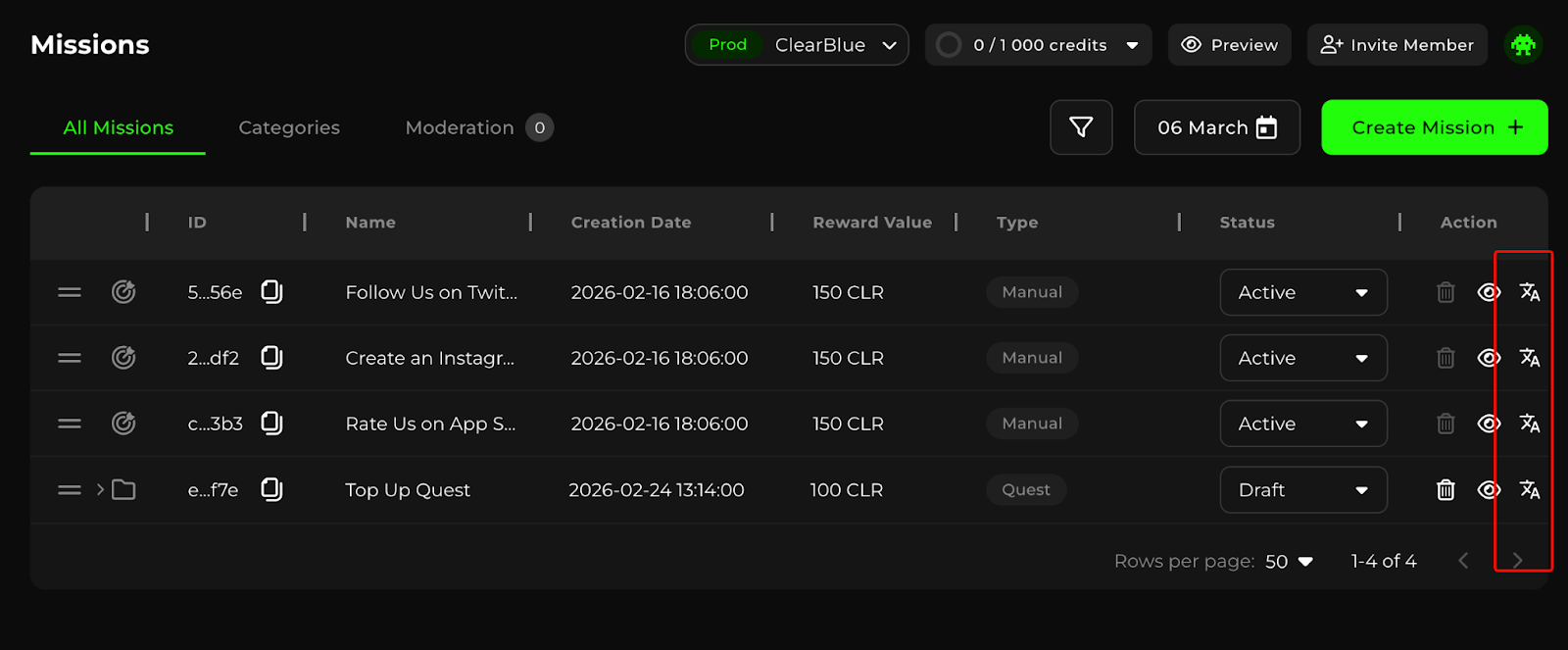
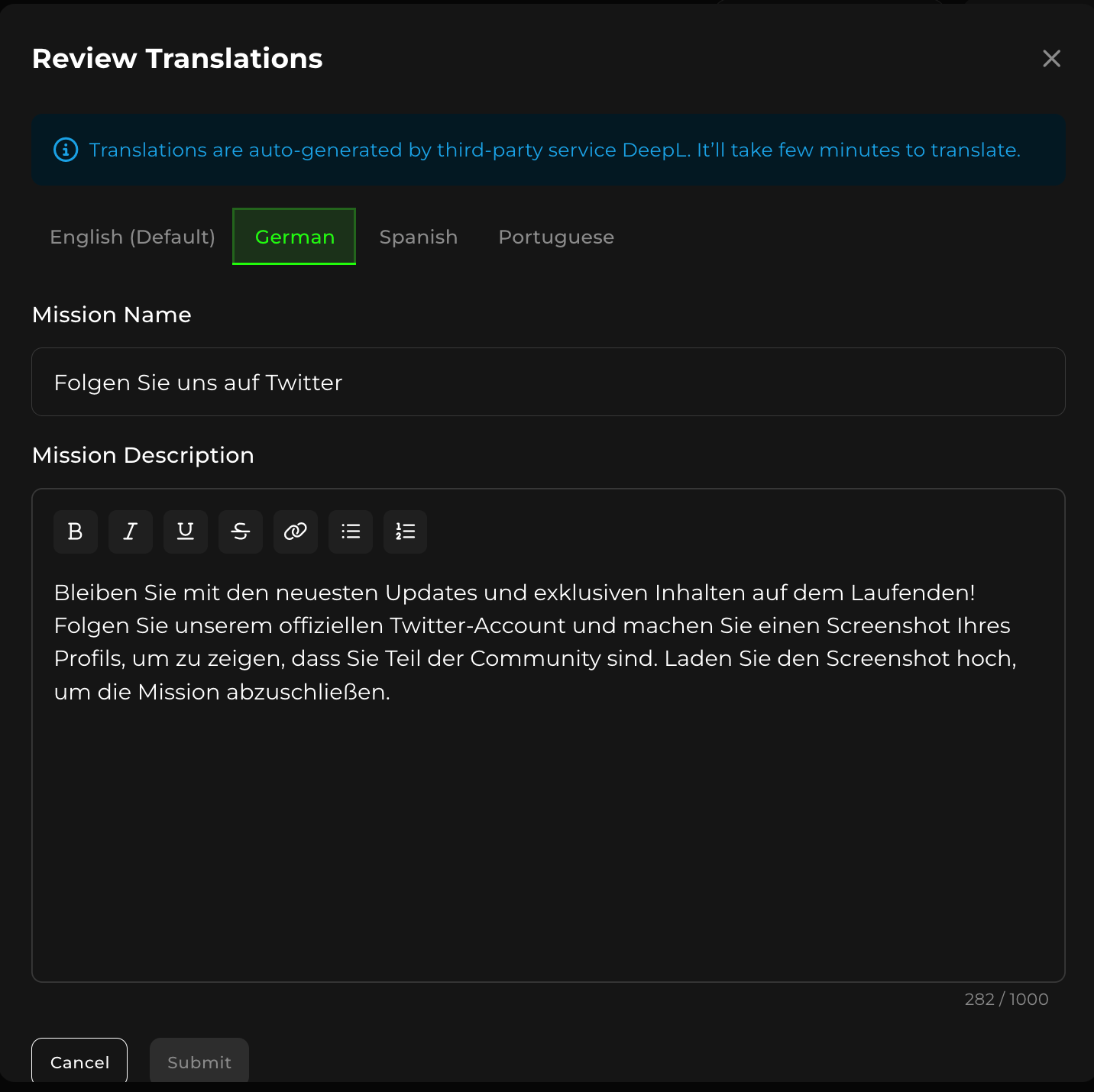
➡️ If you want to **change the descriptions of a particular Mission in all languages**, go to the Missions Page in the Admin Panel and click the translation symbol.
In the Review Translation popup, change the text of the Mission in your default language and then check the box “Apply changes to all languages.”
Click Submit to change the Mission’s description in all languages supported by your Loyalty Interface.
➡️ If you want to **change the Mission descriptions in some languages manually,** go to the Missions Page in the Admin Panel and click the translation symbol.
In the Review Translation popup, switch to the tab with the language you want to change the description in, type in your preferred text, and click Submit.
Repeat the process for each language for every Mission you want to change the description of.
Congratulations, you’re all set!