> For the complete documentation index, see [llms.txt](https://docs.enable3.io/enable3/llms.txt). Markdown versions of documentation pages are available by appending `.md` to page URLs; this page is available as [Markdown](https://docs.enable3.io/enable3/rewards-marketplace.md).
# Rewards Marketplace
Give your users something worth earning. Give your business a scalable way to deliver it.
The **Rewards Marketplace** connects your users' earned points to real, configurable incentives, from gift cards and promo codes to custom-branded rewards. **Rewards** provide a sense of accomplishment and motivate users to keep engaging with your platform.
### Why Use Rewards
#### Case #1: You want to give users a tangible reason to engage
**Problem**: Users collect points but don't see clear value in them. Without a visible, desirable reward catalog, engagement drops after the initial onboarding phase.
**Solution**: Activate the Rewards Marketplace to surface a catalog of redeemable rewards directly inside the widget, giving users a concrete goal to work toward.
**How it works**: Rewards are displayed in the widget with point costs, images, and descriptions. Users browse the catalog, select a reward, and redeem using their loyalty balance.
**How to do it**: Install the Rewards section in My Widget, then create and activate rewards from the Rewards section of the Admin Dashboard.
**Outcome**: Users have a clear, motivating destination for their points, which increases mission completion rates, session frequency, and overall program stickiness.
#### Case #2: You want to launch a reward program without building infrastructure
**Problem**: Setting up a fulfillment pipeline for gift cards, discount codes, or physical prizes requires development resources and third-party vendor contracts your team may not have bandwidth for.
**Solution**: Use Enable3's native reward types — Promo Code, Gift Card (via Tremendous), Manual, and Automatic — each with its own fulfillment logic built in.
**How it works**: Enable3 handles delivery through the widget. Gift cards are purchased via the Tremendous account. Promo codes are distributed automatically from a pre-loaded list. Manual rewards route through an admin approval flow.
**How to do it**: Choose the reward type that matches your fulfillment capacity. Configure the rewards’ cost and information in the Rewards section of the Admin Dashboard.
**Outcome**: You launch a functioning reward program in hours, not weeks — without custom development or external vendor integrations beyond your existing tool stack.
#### Case #3: You want to control costs while keeping rewards compelling
**Problem**: Open-ended reward budgets are hard to manage, especially when high-volume users exploit reward systems faster than expected.
**Solution**: Configure point costs per reward, set redemption quantity limits, and restrict rewards to specific user Segments or Tiers — so the right rewards reach the right users at the right cost.
**How it works**: Each reward has a defined point cost. Promo Code rewards support total redemption caps and one-per-user limits. Manual rewards require admin approval before points are deducted. Tier-gated rewards are only visible to qualifying users.
**How to do it**: Set point costs during reward creation. Use the Segments and Tiers fields to restrict access. Monitor redemption activity under Rewards > Moderation.
**Outcome**: Reward spend stays predictable. High-value rewards are protected for high-value users, reducing cost-per-engagement while improving perceived exclusivity.
#### 🎯 Rewards Marketplace Benefits
* Ready-made fulfillment logic → **No custom reward infrastructure needed**
* Multiple reward types → **Flexibility to match any business model or budget**
* Point-cost configuration → **Full control over reward economics**
* Segment and Tier targeting → **Personalized catalogs for different user groups**
***
### How to Set Up the Rewards Marketplace
{% hint style="success" %}
Available for all integration types, starting from No-code.
{% endhint %}
#### Step 1: Install Rewards
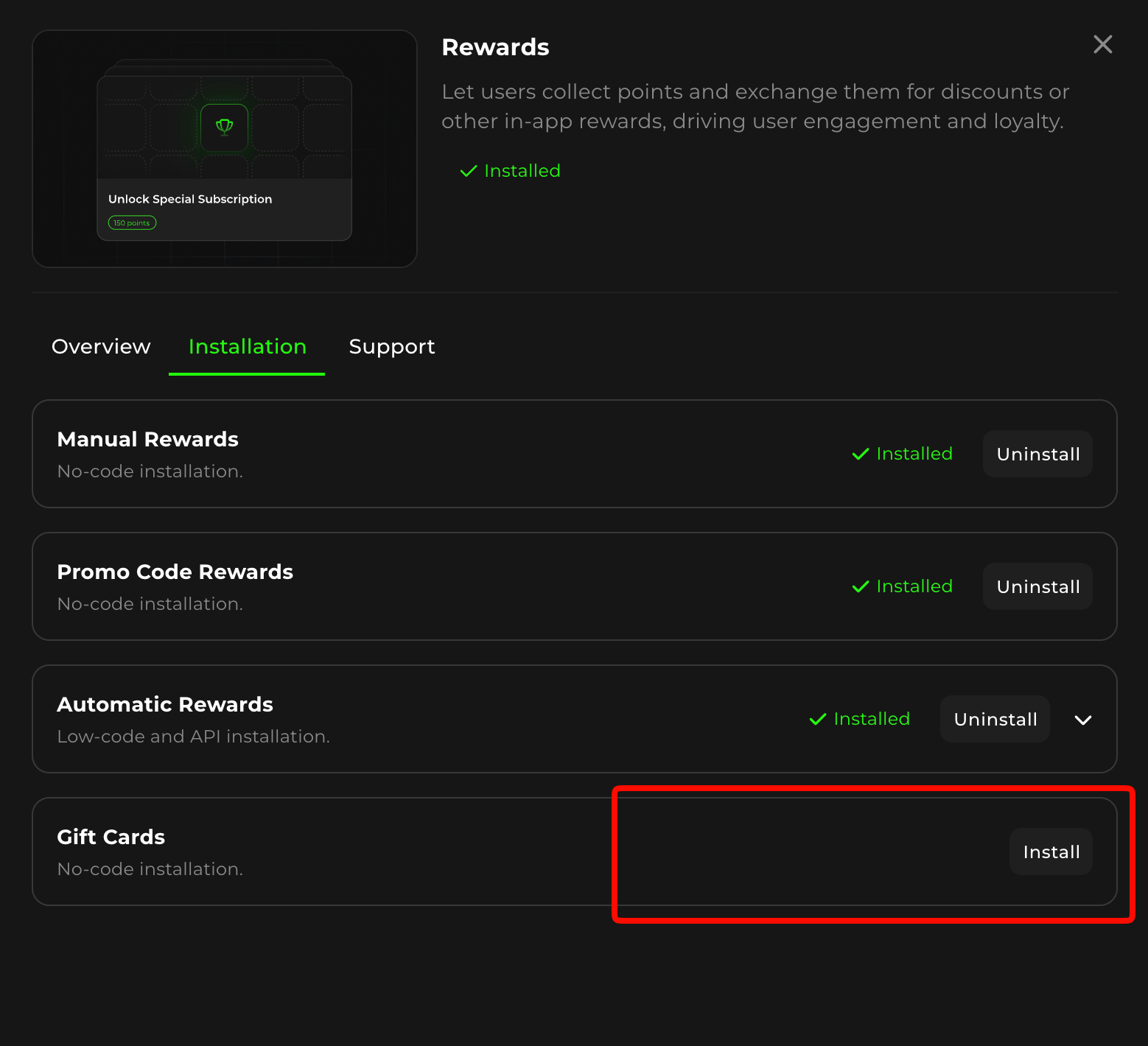
Go to **My Widget**, find the Rewards feature card, and click View.
In the Rewards pop-up, go to the **Installation** tab. Install the reward types you plan to use: Manual, Automatic, Promo Code, and/or Gift Card. Once installed, these types appear as options when creating rewards.
#### Step 2: Create a Reward
Navigate to the **Rewards** section of the Admin Dashboard and click Create Reward.
Select the reward type in the pop-up.
| **Reward Type** | **Best for** | **Requires API?** |
| --------------- | --------------------------------------------------- | ---------------------- |
| Manual | Physical prizes, curated perks, event invites | No |
| Automatic | Digital credits, subscriptions, instant fulfillment | Yes |
| Promo Code | Discount codes, vouchers, access keys | No |
| Gift Card | Real-time digital gift cards via Tremendous | Yes (Tremendous OAuth) |
Once you’ve picked the type of reward, click Continue.
#### Step 3: Configure Common Parameters
All Reward types share the following fields:
* **Image** – Upload a custom image or use the default
* **Reward name** – Displayed to users in the widget
* **Reward description** – Explains what the reward is and how to use it
* **Point cost** – Number of loyalty points required to redeem
* **Segments (optional, requires API)** – Restrict the reward to specific user groups
* **Tier (optional)** – Restrict the reward to users who have reached a specific Tier
#### Step 4: Configure Reward-Specific Settings
Depending on the reward type, additional fields are available:
***For Promo Code Rewards:***
* **Promo code** – The static code delivered to users
* **Available quantity** – Total redemption cap
* **One-time redemptio**n – Limits each user to one use
***For Gift Card Rewards (via Tremendous):***
{% hint style="warning" %}
You need to create a Tremendous account before creating Gift Card rewards.
{% endhint %}
1. Go to the **My Widget** section of the Admin Dashboard, click View on the Rewards card, and go to the **Installation** tab to make sure you have the **Gift Card Reward installed**.
2. At this step, you’ll need to **sign into your Tremendous account** and **set the Reward threshold**.
3. Once connected, go to the **Rewards** section, click Create, and select Gift Card as the reward type.
4. Choose a product from the **Tremendous catalog** in the **Select Gift Card pop-up**. Note that the catalog of available cards varies by location.
5. Select the gift card value, currency, and the number of gift cards that will be available for your users to redeem.
{% hint style="warning" %}
**Note**: The **Total Cost field** displays an estimated cost of purchasing a gift card and may slightly differ from the final charged amount.
{% endhint %}
> The Total Cost is calculated as: (Gift Card Value + Vendor Fee) × Number of Gift Cards × Exchange Rate
> Vendor Fee and Exchange Rate are optional components of the formula.
>
> The Exchange Rate is applied only when the selected Gift Card Value currency is not USD, as settlements with gift card vendors are processed in USD. Please note that the exchange rate is dynamic and may change between the moment the reward is created and the actual redemption by the user. Funds are deducted from your balance at the time of redemption, not at reward creation.
>
> The Vendor Fee is included only if the vendor applies an additional fee for the selected gift card. This fee becomes known only after the gift card is redeemed by the user. As a result, in some cases, the final cost of the gift card may differ from the initially displayed estimate.
#### Step 5: Activate and Monitor
Click **Create** to publish the reward. It becomes visible in the widget as soon as it's **active**. Monitor redemption requests in the **Rewards** section – Moderation tab (Manual rewards only).
Congratulations, you're all set!
***
### Managing and Moderating Rewards
**Manual Reward** requests appear in the **Rewards** section of the Admin Dashboard in the **Moderation tab**.
Admin actions available per request:
* **Approve** – Deducts points and confirms the reward is granted
* **Decline** – Cancels the request and returns points to the user's balance
All other reward types (Automatic, Promo Code, Gift Card) are fulfilled without moderation.
***
### How End Users Experience Rewards
#### Browsing the Catalog
Users open the widget and navigate to the **Rewards** section.
{% hint style="info" %}
**Note**: An administrator can set the name of this section to be displayed in a widget (e.g., Bonus Shop, Reward Catalog, Prizes, etc.)
{% endhint %}
Available rewards are displayed as cards with a name, image, description, and point cost. Only rewards the user is eligible for (based on their Segment and Tier) are shown.
#### Redeeming a Reward
1. The user selects a reward from the catalog. In the popup, the user is given the choice to redeem the reward, spending the required amount of points, or not.
2. The user clicks “Redeem.”
3. The system checks their current point balance.
4. If sufficient, the user confirms the redemption.
5. Delivery depends on reward type:
* **Manual** – A request is submitted; the user waits for admin approval. The user can check the status of the reward in the Activity tab in their widget.
* **Automatic** – Fulfilled instantly via API.
* **Promo Code** – The code is displayed immediately in the widget, ready to be copied.
* **Gift Card** – A claim link is delivered directly in the widget; the user visits the link to access their gift card **on the Tremendous platform.**
***
{% hint style="info" %}
When the redemption limit is reached, the reward is hidden from the user's view
{% endhint %}
Want to see how it works **in a real Admin Dashboard**? Watch a **video tutorial** on setting up your Rewards.
### Reward Marketplace: Video Tutorial
{% embed url="" %}