> For the complete documentation index, see [llms.txt](https://docs.enable3.io/enable3/llms.txt). Markdown versions of documentation pages are available by appending `.md` to page URLs; this page is available as [Markdown](https://docs.enable3.io/enable3/tech/integration/tremendous.md).
# Tremendous
Deliver more than 2000 different gift cards and cash rewards in 200+ currencies to your customers.
Connect Tremendous to **automatically fulfill Rewards** with real gift cards and cash payouts.
### **Why Integrate Enable3 with Tremendous**
* No need to source, stock, or manually distribute gift cards yourself → **Lower operational overhead**
* Users pick their own reward from 2,000+ options → **Higher perceived reward value and satisfaction**
* Global gift card and cash payout coverage → **Reward users anywhere, in their local currency**
* Needs Gift Card funding through the Tremendous account → **No risk of running over the budget**
#### **Exemplary Use Case**
**Problem**: You want to reward users for completing Missions with rewards that feel meaningful, but sourcing, purchasing, and distributing gift cards manually across regions and currencies doesn't scale.
**Solution**: Connect Tremendous to Enable3 and let it handle reward fulfillment automatically once a Mission is completed.
**How it works**: When a user completes a Mission linked to a Tremendous-funded Reward, Enable3 triggers a payout request to Tremendous. Tremendous then delivers the user a redemption link by email, where they choose their preferred gift card or cash option.
**How to do it**: Connect your Tremendous account via OAuth, create a Reward funded by Tremendous, and attach it to a Mission.
**Outcome**: Users get to choose a reward that actually means something to them, and fulfillment happens automatically — no manual gift card purchasing or distribution needed.
### **Supported Reward Types**
Gift Cards
* Amazon
* Wallmart
* Starbucks
* Apple
* Samsung
* Google Play
* Netflix
* AirlineGift
* Delta Air Lines
* FlystayGift
* Global Experience Card
* Global Hotel Card
* ToursGift
* Trip.com
* PlayStation
* XBox
* Airbnb
* Uber
...and more! Over 2,500 options in 200+ countries.
Prepaid Cards
Virtual and Physical Visa cards issued in the US.
Cash Payouts
* Bank transfer
* PayPal
* Venmo
* Cash App
... and more international digital wallets.
Donations
* International Rescue Committee
* Save the Children
* Doctors without Borders
... and more.
{% hint style="warning" %}
Card and cash reward availability varies by region. Not every gift card or payout method is available in every country or currency: Tremendous determines the available catalog based on the recipient's location.
{% endhint %}
### **How to Set Up a Tremendous Integration**
**Prerequisites**
Before connecting Tremendous, make sure you have:
* A Tremendous account with an admin access
* Enough funds in your Tremendous account to distribute the planned quantity of Rewards
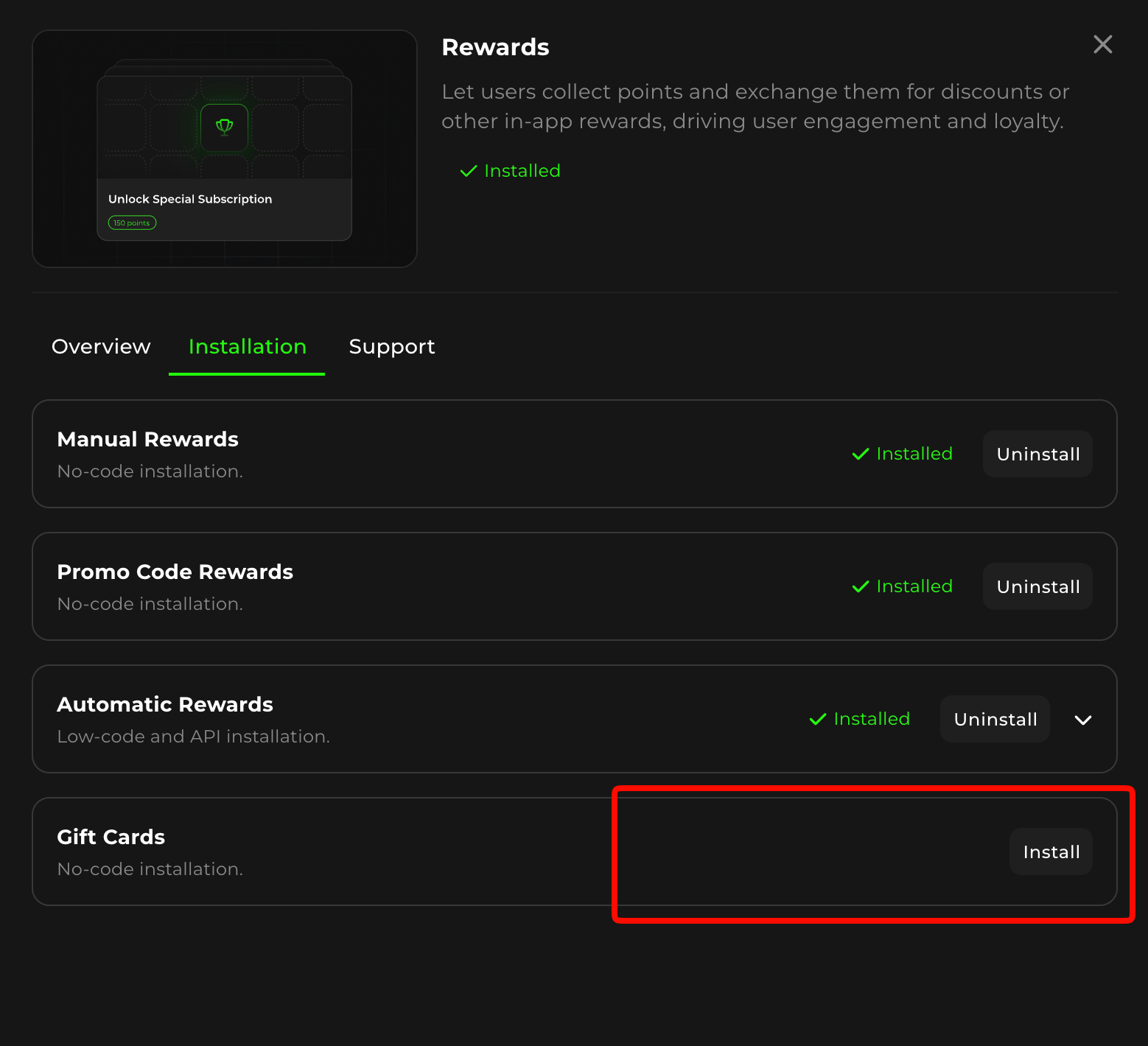
1. Go to the **My Widget** section of the Admin Dashboard, click View on the Rewards card, and go to the **Installation** tab to make sure you have the **Gift Card Reward installed**.
2. **Sign into your Tremendous account** (ou'll be redirected to Tremendous to log in and authorize Enable3).
3. On the Tremendous authorization screen, review the requested permissions and approve the connection. You'll be redirected back to Enable3, where your Tremendous account now shows as **Connected**.
4. **Create a Reward** funded by Tremendous in Enable3 and **attach it to a Mission**.
Learn more about creating RewardsLearn more about creating Missions