> For the complete documentation index, see [llms.txt](https://docs.enable3.io/enable3/llms.txt). Markdown versions of documentation pages are available by appending `.md` to page URLs; this page is available as [Markdown](https://docs.enable3.io/enable3/tech/integration/analytics-platform-integrations.md).
# Analytics Platform Integrations
Use behaviors tracked by Firebase or Amplitude as a basis for Rewards distribution, saving your team’s time and effort.
Connect your existing analytics platform — Firebase Analytics or Amplitude — to **automatically import user events into Enable3**. Once connected, these events become available to power Missions and reward your users.
### 🎯Why Integrate Enable3 with Analytics Platforms
* No need to duplicate event tracking infrastructure → **Lower technical overhead + reduced maintenance cost**
* Turning analytics events into reward triggers → **Faster GTM for new loyalty campaigns**
* Using a single source of truth (analytics as event origin) → **Additional transparency in reward cost distribution**
* Using analytics-based segmentation for Missions → **More precise targeting + higher ROI on loyalty initiatives**
* Automated event processing → **Reduced workload for the team**
#### Exemplary Use Case
**Problem**: You track key user behaviors in Firebase/Amplitude (e.g., onboarding completion, feature usage, purchases), but those insights remain passive data and do not actively drive engagement or revenue.
**Solution**: Connect Firebase or Amplitude to Enable3 and turn existing analytics events into Event-Based Missions’ triggers.
**How it works**: Events already collected in your analytics platform (e.g., `tutorial_completed`, `subscription_upgraded`, `first_transaction`) are automatically imported into Enable3 every hour.
Once activated, these Events trigger Missions’ progress. Users earn Rewards for completing Missions, which incentivises them to engage with your app more.
**How to do it**: Connect your [Firebase](#how-to-set-up-a-firebase-integration) or [Amplitude](#how-to-set-up-an-amplitude-integration) to pass events already collected by the analytics platform to the Enable3 database. Create a Mission requiring users to perform a certain action that registers as an event in both your analytics platform and Enable3.
Set Rewards to be distributed automatically or manually once the Mission is complete.
**Outcome**: While you have only previously measured user behaviors, now you can drive the desired ones, like onboarding completion, feature adoption, or repeated purchase.
### Supported Analytics Platforms
{% hint style="success" %}
Available for Low-code and API integrations
{% endhint %}
| Firebase Analytics | Google BigQuery | Google Service Account JSON key |
| ------------------ | -------------------- | ------------------------------- |
| Amplitude | Amplitude Export API | API key and secret key |
### How to Set Up a Firebase Integration
#### Prerequisites
Before connecting Firebase, make sure you have:
* A Firebase project with Firebase Analytics enabled
* BigQuery export enabled in Firebase
*(Firebase Console → Project Settings → Integrations → BigQuery)*
* A Google Cloud Service Account with:
* BigQuery Data Viewer
* BigQuery Job User Roles
#### Steps
{% stepper %}
{% step %}
In Google Cloud Console, create (or use an existing) **Service Account** with **access to your Firebase BigQuery dataset**.
{% endstep %}
{% step %}
Generate a **JSON key** for that Service Account.
{% endstep %}
{% step %}
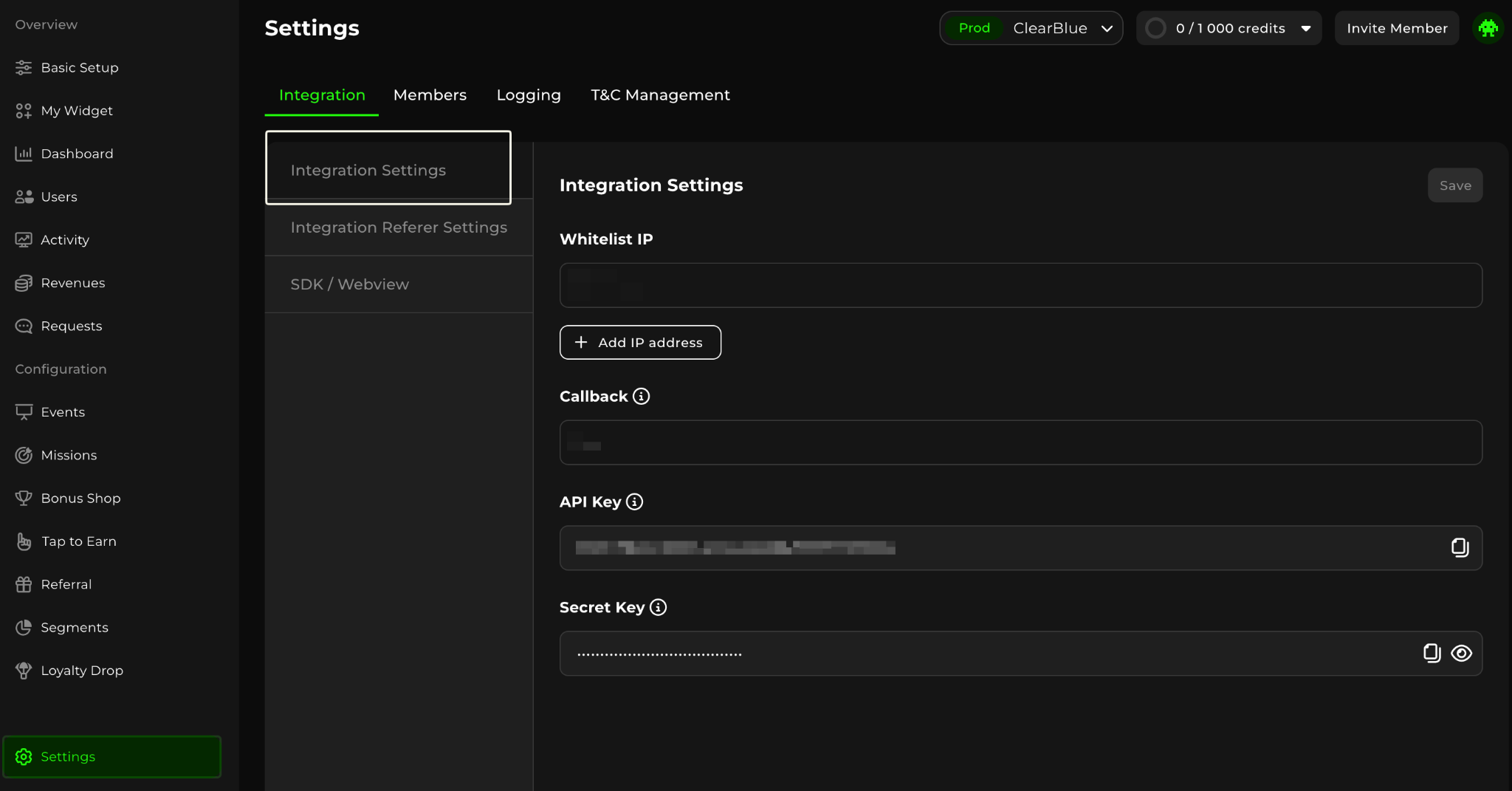
In the Enable3 Admin Panel, navigate to the **Settings** section. There, go to the **Integration Settings** tab, select **Start Sending Events**, and choose the source (Firebase).
{% endstep %}
{% step %}
Paste the **Service Account JSON key** in the required field.
{% endstep %}
{% step %}
Ask your Enable3 contact to **enable the Firebase Events feature flag**.
{% endstep %}
{% step %}
Wait for the first import cycle (*runs hourly*) — new Events will appear automatically.
{% endstep %}
{% endstepper %}
{% hint style="info" %}
#### How Events are fetched
Enable3 connects to BigQuery and queries the `analytics_*` dataset in your Firebase project.
* **Events are fetched in 1-hour windows**
* Only events containing `user_id` are imported
⚠️ BigQuery export must be enabled before events become available.
After activation, it may take 24–48 hours for initial data to appear in BigQuery.
{% endhint %}
### How to Set Up an Amplitude Integration
#### Prerequisites
Before connecting Amplitude, make sure you have:
* An Amplitude project with event data
* Your API Key and Secret Key
*(Amplitude → Settings → Projects → your project)*
#### Steps
{% stepper %}
{% step %}
Go to **Amplitude Organization Settings**, and select your project.
{% endstep %}
{% step %}
In the General Tab, copy the **API Key** and **Secret Key**.
{% endstep %}
{% step %}
In the Enable3 Admin Panel, navigate to the **Settings** section. There, go to the **Integration Settings** tab, select **Start Sending Events**, and choose the source (Amplitude).
{% endstep %}
{% step %}
Enter your **Amplitude API Key** and **Secret Key** in the required fields.
{% endstep %}
{% step %}
Ask your Enable3 contact to **enable the Amplitude Events feature flag.**
{% endstep %}
{% step %}
Wait for the first import cycle (*runs hourly*) — new Events will appear automatically.
{% endstep %}
{% endstepper %}
{% hint style="info" %}
#### How Events are fetched
Enable3 calls the Amplitude Export API and downloads events in **1-hour windows**.
* Events are matched by `user_id`
* Fallback to `device_id` if `user_id` is not available
⚠️ Amplitude data has a delay of approximately 2–3 hours before becoming available for export.
ℹ️ Amplitude has a **10 MB export limit** per import cycle. If your project generates a high volume of events per hour, contact your Enable3 representative.
{% endhint %}
### How to Manage Imported Events
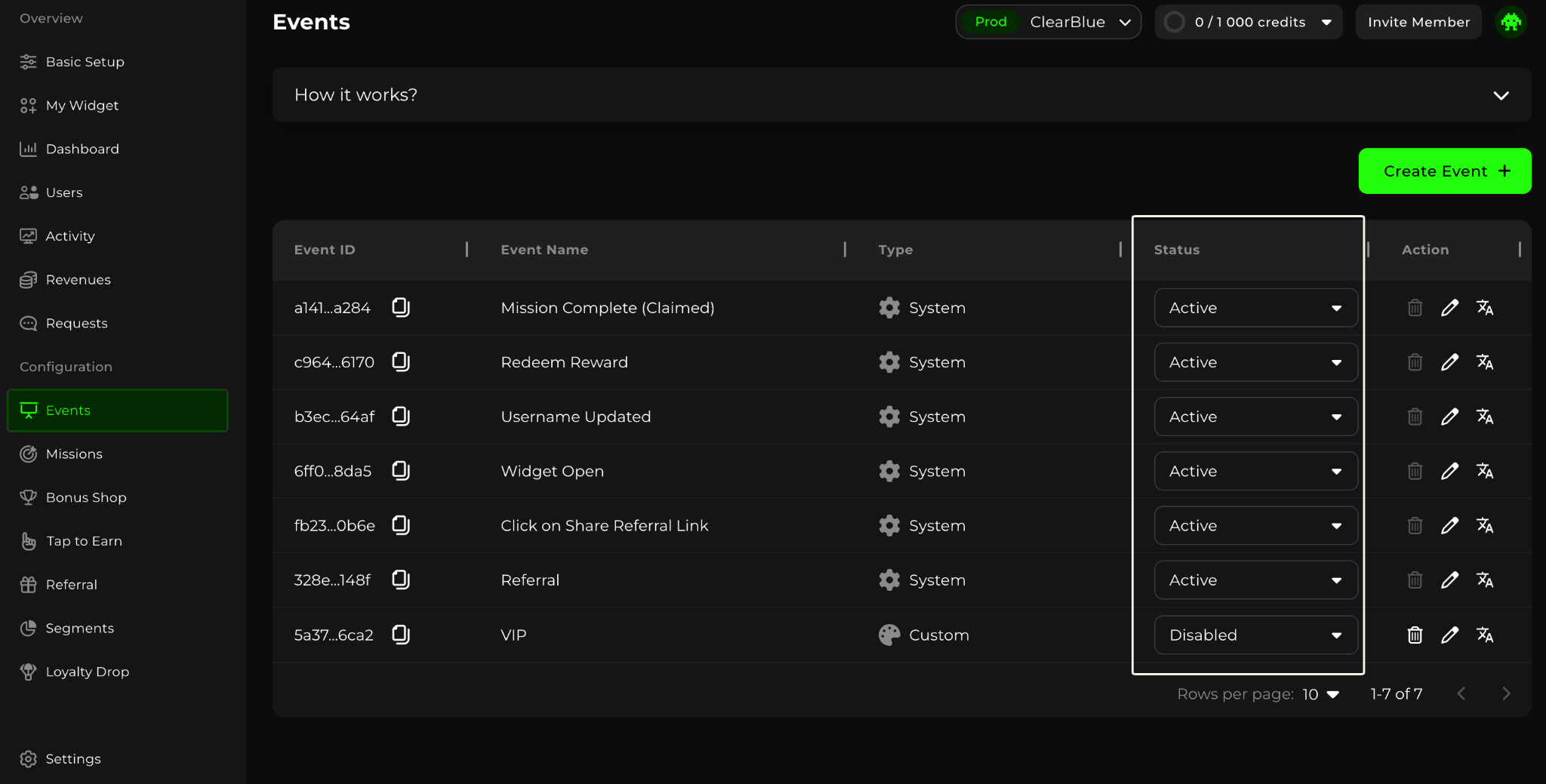
Once integration is active, new event types will automatically appear in your Event list with a status “Disabled”.
Then, you can activate the needed Events.
Each Event can have the following status:
* **Disabled** — recognized but not used; no Missions will be triggered when the Event happens
* **Active** — incoming Events are processed and can trigger Mission progress
{% hint style="info" %}
Note: Activating only relevant Events keeps the configuration clean and avoids unnecessary processing.
{% endhint %}
### How to Use an Imported Event in a Mission
1. Go to the **Events** section in your Admin Panel.
2. Locate the imported Event (labeled Firebase or Amplitude).
3. Change its status to **Active**.
4. Create a Mission using this Event.
Learn how to create a Mission
{% hint style="warning" %}
Note: If there is an issue with your credentials (expired, revoked, or incorrect), you will receive an email notification. Notifications are sent **once per day** to prevent spam.
{% endhint %}